Skip the hassle of paying for a service and understand what’s really happening.

To follow this tutorial, I’d recommend a machine with these minimum specs:
- CPU: Modern 4-core CPU
- RAM: 8 GB
- GPU: Preferred but not strictly necessary
- Storage: SSD with at least 10 GB free
- OS: Windows 11
Have you heard about vibe coding? It’s a way to task an Artificial Intelligence Agent with doing all of the “hard stuff” of actually programming something, while you focus on offering specifications and directions to the agent.
In practice, it’s pretty cool! Historically, as a trade, Programming has offered free training resources to people that are interested in starting, often at cost to the owner. AI tooling makes it possible to lower the bar even further, enabling people to engage with technology in plain, spoken language, without needing to use a programming language!
Tools like Claude Code and Cursor provide exactly that kind of tooling, allowing you to type the product of your dreams into a chat window and watch it unfold before your eyes. At a cost. I’d encourage you to start by understanding the components that make up these tools and build one for yourself for free.
What are these Ingredients?
There are three main components of a vibe coding agent, and it’s crucial to understand what they provide:
- An Integrated Development Environment (IDE):
- This is the place where you’ll be doing your
codingprompting. It needs to manage the project’s files, and provide a way to interact with your AI agent, usually through a chat window. - In this example, I’ll be using Visual Studio Code.
- This is the place where you’ll be doing your
- A Large Language Model (LLM):
- This is the magic that is doing all of the programming. At a basic level, an LLM takes requests and returns the most likely response. ChatGPT would be an example of this – people saw a huge change in response sentiment when they upgraded from version 4 to 5. There are lots of different models, and they’re all tuned for specific purposes. Ergo, it’s important to pick one that is tailored to programming.
- Here we’ll be using a model from Qwen. The one we use will be fairly small and limited, but it’s a great one for low-performance computers.
- Additionally, to manage the LLM, we’ll be using Ollama. It’s a free service that lets you download and start up LLMs on your own computer.
- A Coding Agent:
- This is the chat bot that you’ll be interfacing with while you’re vibe coding. If you’ve used any kind of support bot before, you’re probably familiar with how this works.
- We’ll be using Kilo for this example, but there are a lot of options out there.
Hey, this one tool offers the complete package! Why get three separate tools?
A lot of these tools provide one thing and charge for another component. Usually the IDE and Agent are free, but the LLM charges for use. For a free LLM, sometimes their IDE doesn’t allow you to install your own coding agent. Free agents tend to have strict hourly use limits. A lot of these services change their pricing models frequently, pay-walling features that you’re used to! Here, I suggest products whose free parts are their core offering, and I doubt will change in the future.
Additionally, It’s important to understand how this is put together. Sometimes a fully integrated solution’s convenience feels too much like magic and it’s hard to understand how it all really works.
What’s the Recipe?
Start by downloading Visual Studio Code: https://code.visualstudio.com/
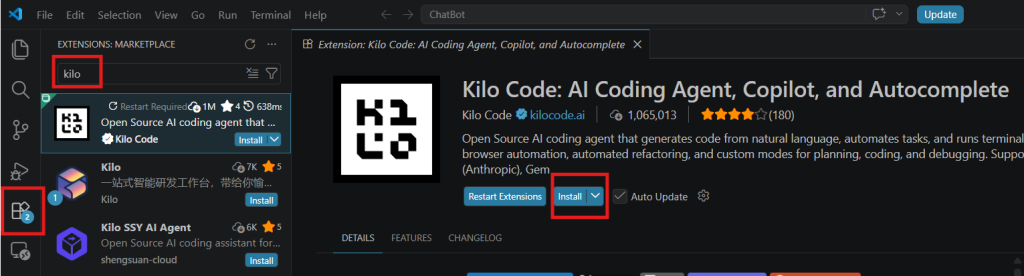
When its running, click the icon with four blocks on the left side of the screen. In the search box, type in Kilo. Click the KiloCode app, and install it locally.
Next, we need to install Ollama and an LLM to use. Download Ollama here: https://ollama.com/download
Ollama is a really powerful tool, but it doesn’t have a traditional graphical user interface (GUI) like we’ve grown accustomed to. The GUI that does launch doesn’t give tools for managing local LLMs, just using their (paid) cloud offerings. This is what I was alluding to before.
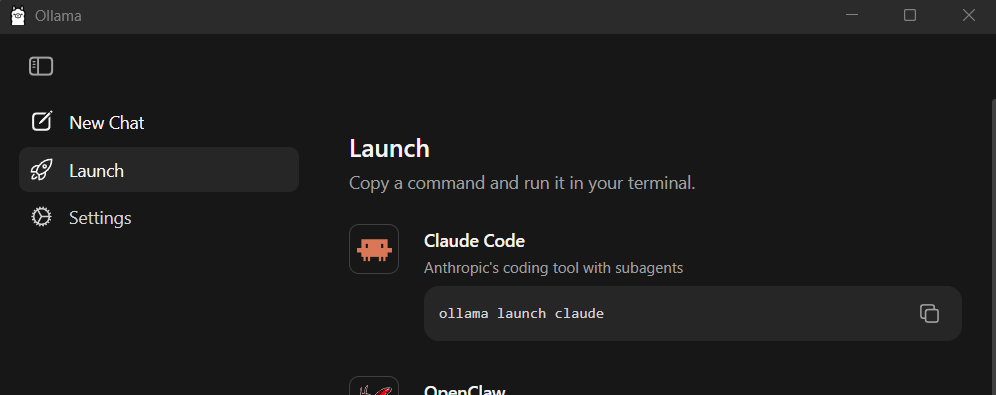
Some people have made projects that can offer a GUI, but it’s easy to get confused trying to set one of those up. I recommend interacting with it though command line instead of trying to use a tool on top of it. It’s easy – trust me.
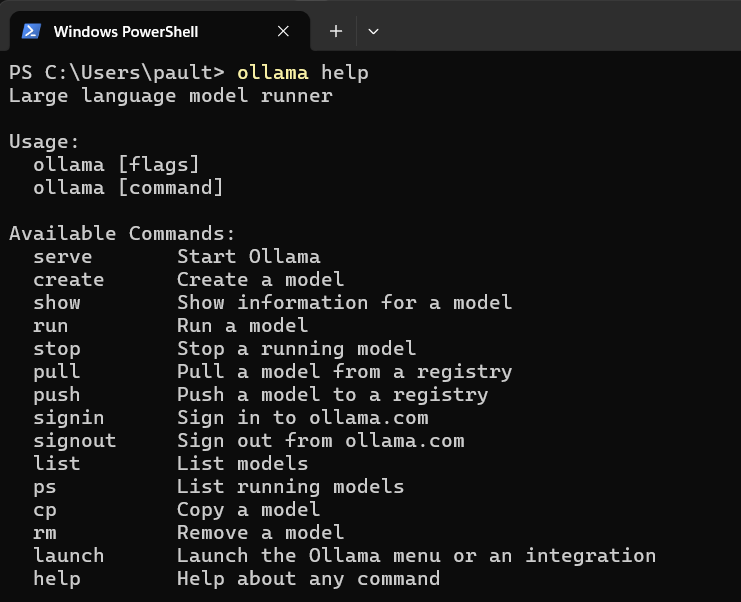
In your terminal (command prompt, powershell, etc), you can get a list of commands by entering: ollama help
With this installed, we can continue to picking an LLM to use. I’m going to be using this one: https://ollama.com/library/qwen3.5:4b. It’s trained for programming, small, and doesn’t require a lot of power to use. You can browse all of the available models here: https://ollama.com/library
To download it, enter: ollama pull qwen3.5:4b
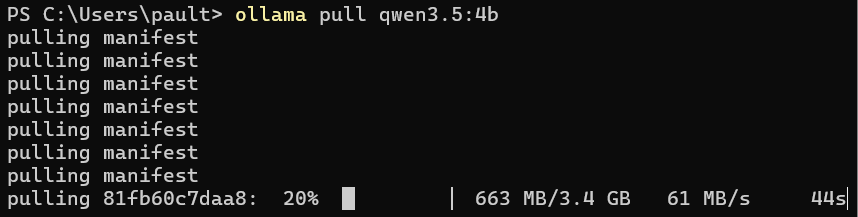
Once it’s done, you can verify the install with: ollama list

Finally, you can start it with: ollama run qwen3.5:4b
Ask it a prompt to make sure its working correctly.
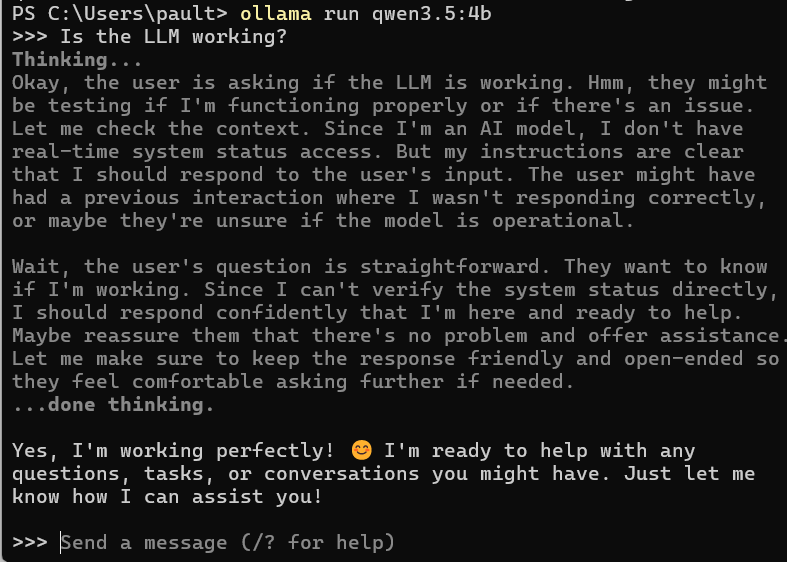
Congratulations! You’ve setup your very own LLM! You might notice it’s a little slower than ChatGPT or other models that you’ve used. More on that later.
Lets get Cooking!
In VS Code, now you can open up a folder that you’d like to have the project in. I named mine VibeExample.
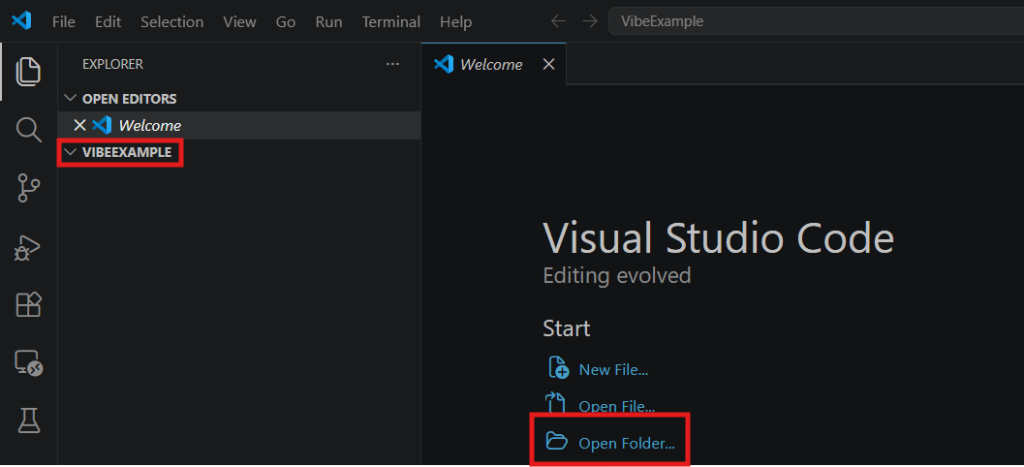
Next, the Kilo agent needs to be configured to use our Ollama LLM. In that search bar up top you can type in >kilo to show kilo code, if it isn’t already open.

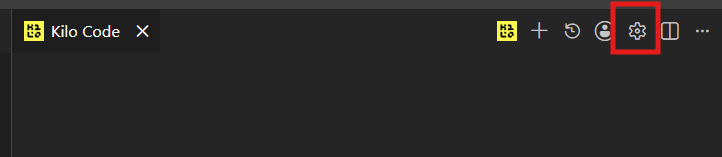
When it opens, you’ll need to click the gear icon to go to the settings page.
Click Providers on the left panel:
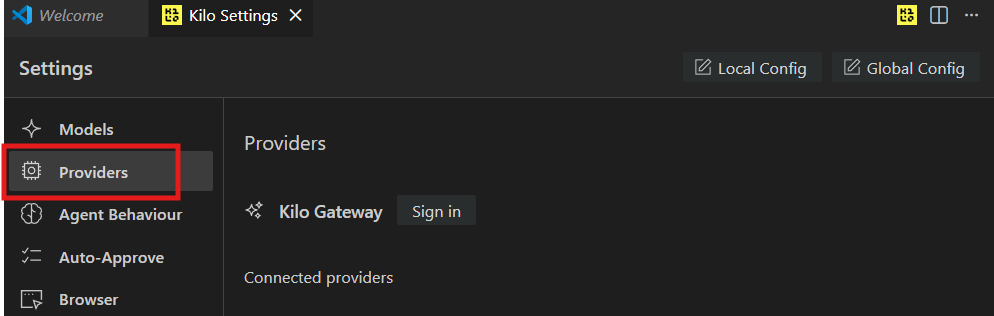
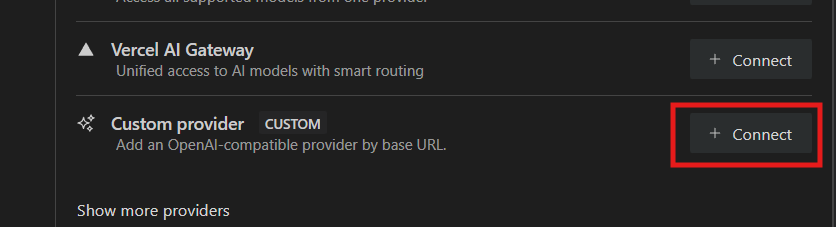
And then Custom Provider from the Popular providers list.
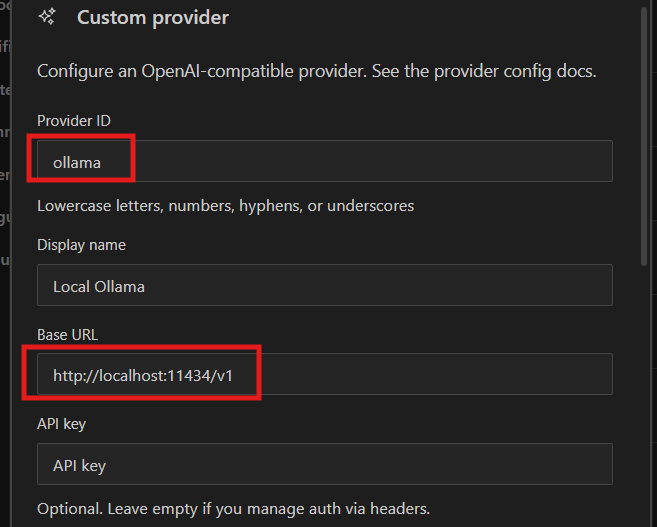
In the Custom Provider window, make sure you enter ollama as the ProviderID and http://localhost:11434/v1 as the Base URL. That tells it to use the LLM that we are locally hosting. That number afterwards, the port, is the default address for Ollama. You probably won’t need to change it.
If you scroll down, it should identify the model that we setup earlier right here!
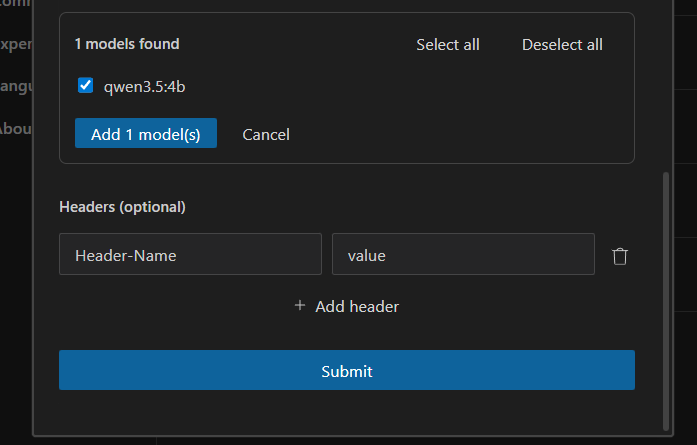
The model should be the name of the one we downloaded earlier. If you downloaded a different one, you’d change that here. Click Add and Submit.
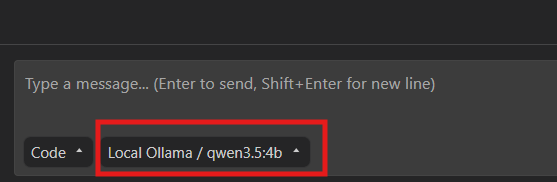
At the bottom of the Kilo window, there should be a dropdown that displays the model that is currently being used. You should see the one that you downloaded and setup with Ollama earlier. If its not set already, you can search for it by clicking the dropdown and choosing it. If it’s not there, you’ve gone wrong somewhere. Try retracing your steps.
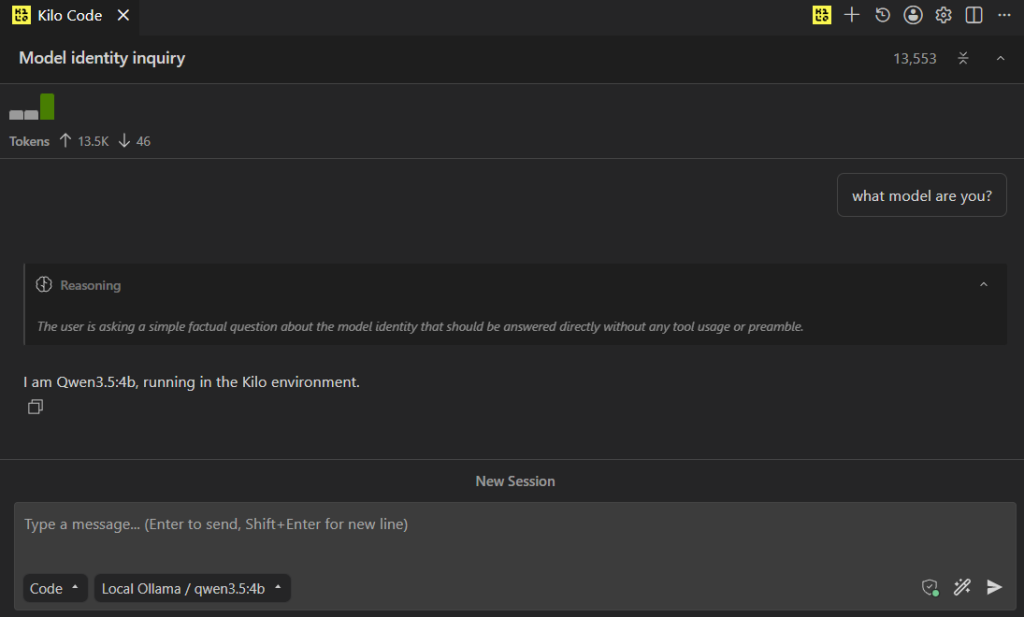
Finally, it’s time to make sure everything is connected correctly. I recommend asking it about what model its using and where that is being sourced from. Kilo has a lot of model options from that dropdown – some are paid and the free ones are rate-limited. If it seems like the Ollama local model isn’t being used… the free Kilo models excel at debugging themself!
I always start by asking it the name of the model, or if its running, or something as a health check. This call and response took about 10 seconds for me.
After that, you can start to get creative. I’m going to give it a very vague prompt: Please create a clock application in C#.
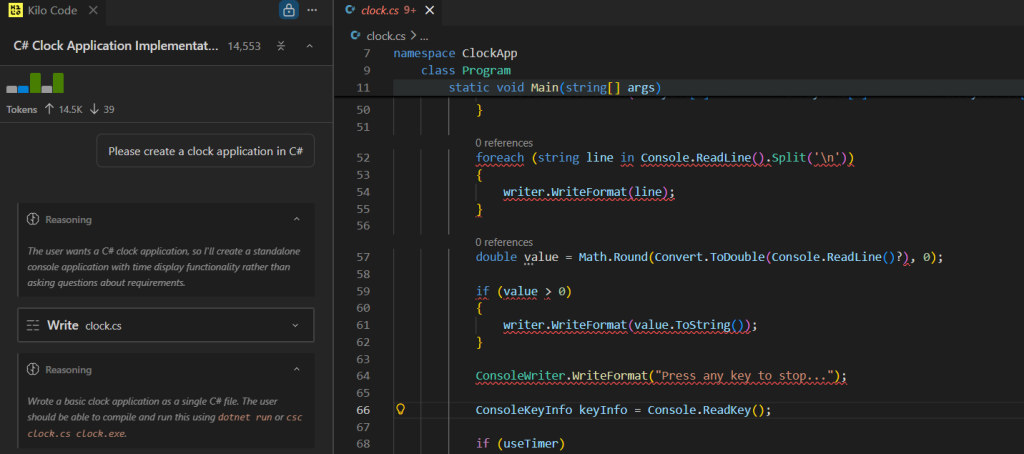
Unfortunately, there are a few compiler errors. When I turn back to the coding agent and point out the compiler errors, it is able to make changes and continue. This also takes about 10 seconds. I ask it to run the application:
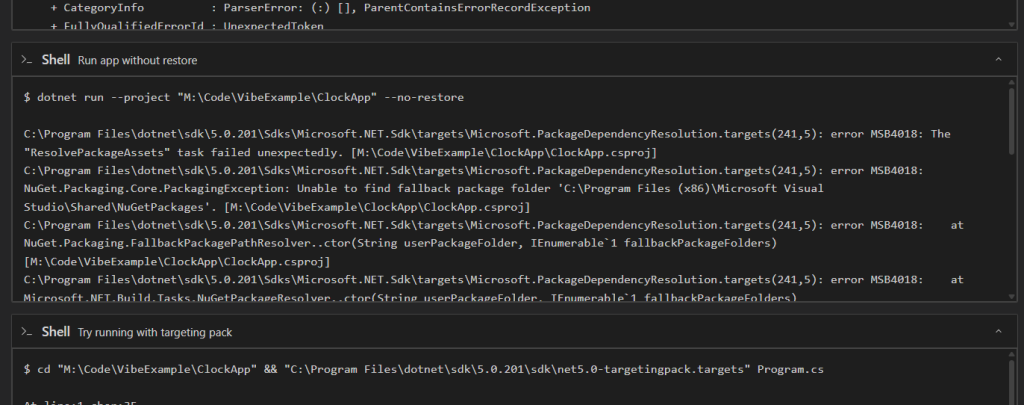
It starts to get a little confused. Since AI agents are non-deterministic, they might get yours totally correct on the first try! Vague prompts are hard for the LLM to reason with, and it might struggle to fill in the blanks. If you gave it an even more complex prompt, it might be totally off course.
They might also never get it. My agent spun around for 3 minutes, failing to get anything running, until I just asked it how to do this myself.
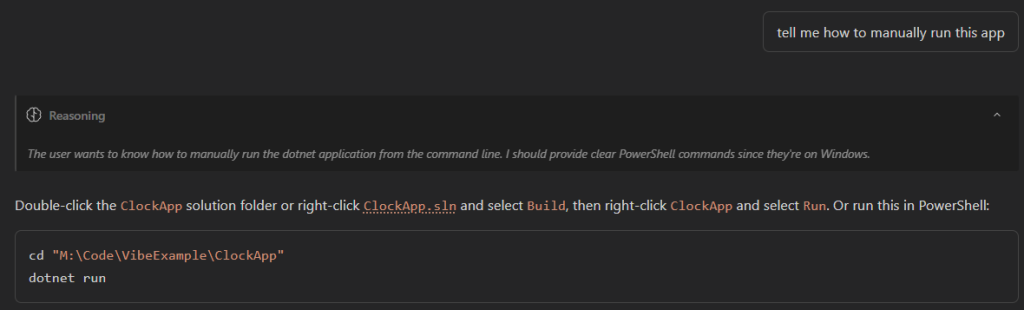
If your computer is not very powerful, it might be taking you 10 to 15 minutes to get back any kind of meaningful response. This is where the AI experience starts to fall apart. I encourage you to keep at it until you have a very basic program that works as intended. Keep the scope small, and celebrate the wins you get.
Coder’s Digest:
I hope you had fun trying out AI tooling! I hope you haven’t blown out your computer either. This exercise should have made a few things clear:
Setting this up is complicated. It takes a lot of space, time, and knowledge to get all of these parts working together. Kudos to you if you were able to get successful prompts working. There is a reason that people are willing to pay for AI providers to do this on their behalf.
It’s not exactly magic. We used a smaller model that is less capable with complex reasoning, so the results were probably less than stellar. Nonetheless, it’s still just cool to see the agent produce code. It would have taken a lot longer to type it all out by hand. You’d see better performance with better models, but…
AI workflows require a lot of power. In order to get LLMs to ingest and reason with large codebases, very very powerful computers need to process all of the data. If your agent was running slowly, consider how powerful the servers are that run the fast LLMs you can freely use online. The demand has gotten so out of hand for AI processing components that the price of computer parts have skyrocketed in the last year. If you were hoping to get a more powerful computer to try out other Ollama models, you’re going to need to spend a lot of money. Speaking of which…
Those services aren’t such a bad deal. Building a new computer to do this kind of work is more expensive than the ~$20 a month for those online services that we wanted to avoid. The oversized data centers that are popping up everywhere cost millions of dollars to stuff full of storage and processing for running LLMs and managing requests. Say – how do you think they’re making a profit?
Food for thought.
Leave a Reply